How to index sites requiring authentication with Zoom
Q. I can't get authentication to work for
spider indexing my site.
Q. How do I index protected parts of my website requiring user authentication?
Check whether your site uses HTTP authentication or cookie-based
authentication. Zoom can provide automatic authentication for the
former (HTTP authentication), but will require special methods to
access websites using the latter (cookie-based authentication).
HTTP authentication
HTTP authentication usually appears as a special login window (when
you access the page in your browser) and is a standardised method
of authenticating over HTTP, implemented by the web server.
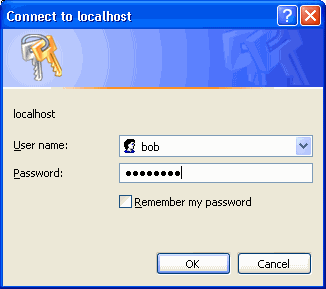
Example 1. A typical website with HTTP authentication
If your website uses HTTP authentication, you can
simply enter your login information into Zoom (under the "Authentication"
tab of the Configuration window) and the spider will automatically
login when required and successfully index the protected parts of
your website. Zoom supports the following authentication methods: Basic, Digest, NTLM, Digest-IE.
Cookie-based or session-based authentication
Cookie-based authentication however, usually appears as a form
on a page, and is implemented by server-side scripts (such as PHP
or ASP or Cold Fusion). This method of authentication is typically inaccessible to most spiders because there is no standard way to login.
However, Zoom V6 offers new features to automatically login on such pages. To do so you will need to provide the following information and settings.
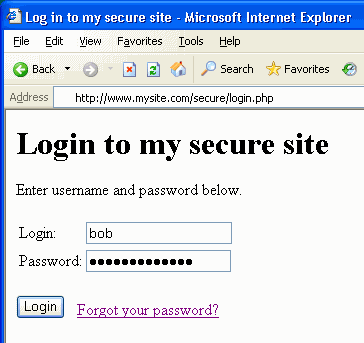
Example 2. A typical website with cookie-based
(or session-based) authentication
- Read and save cookies when needed: This option enables cookie support in Zoom. You will need to check this option to access cookie-based authentication websites.
- Automatic login on following page (URL): Here, you should specify the URL to the page containing the login form. Using the example above (Example 2 screenshot), this would be "http://www.mysite.com/secure/login.php". On this page, the HTML for the form may look like the following:
                              <form   action="?op=login" method="POST">

                              Login:   <input name="username" size="15"><br>

                              Password: <input type="password" name="pass"   size="8"><br>

                              <input   type="hidden" name="secret" value="handshake">

                              <input type="submit" value="Login">

                      </form>
It is important to look at the HTML for the login form because you will need the name for the login variable and the password variable in the next steps.
- Login variable name: This is the name of the login input text box. That is, it is the part after "name=" for the input tag where you will enter your login. In the above HTML example, this would be "username".
- Your login: This is the actual login you would be typing into the text box normally. In the above example, this would be "bob".
- Password variable name: This is the name of the password input text box. It would be the part after "name=" for the input tag where you enter your password. In the above HTML example, this would be "pass".
- Your password: This is the actual password you would be typing into the text box.
Note that the automatic login process will submit these values to the action= URL specified for the form. It will also pass along any hidden variables within that form as they are often also required by the login process.
When automatic login will not work on a Cookie or session-based website
Automatic login may not work on some sites or forums with anti-spider/anti-bot mechanisms that prevent exactly this type of automatic logins (they are usually put in place to avoid spam bots). In such cases, you will need to manually login with Internet Explorer as described below.
- You can login to the site via Internet Explorer, then immediately
afterwards (do not close IE), start indexing from Zoom (making
sure it starts spidering from a page within the site rather than
visiting the login page again). The cookie set in Internet Explorer
should carry across to Zoom (make sure to check the option "Use
cookies from Windows and IE" under the "Authentication"
tab of the Configuration window). Note that this method will not
work with per session cookies (see notes
below).
- If your login page can receive username and password information
via the URL, then you can use a spider start point / URL with
this information specified as GET parameters (for example, "http://www.mysite.com/login.asp?username=george&password=ringo").
- If you can modify the server-side script that does the authentication,
you could change it so that it allows a user-agent containing
the word "ZoomSpider" to bypass the login process. Similarly,
you could also allow the IP address of the indexing computer to
bypass the login process.
- If possible, consider using Offline mode to index your
website. This requires a copy of the website to be accessible
on your local hard disk, allowing Zoom to simply scan all the
files without having to get pass the security restrictions on
your live site. Note however that offline mode is not suited for
websites which depend heavily on server-side scripting to deliver
content (eg. PHP or ASP driven websites). See the Users
Guide for more information on Spider mode and Offline
mode.
Important: If you are using one of the above methods
to allow the spider to login to your cookie or session-based authenticated
site, you need to make sure that the spider does not follow a link
to the "logout" page, subsequently logging itself out
of your website. You can prevent this by simply specifying the logout
page in the "Skip pages and folder list" (in the Configuration
window, under the "Skip options" tab), eg. "logout.asp"
or "&logout=1", etc.
Notes regarding persistent and
session cookies
If your website uses cookies for authentication, you should check
whether the cookies are persistent or session based.
Persistent cookies are stored for a specified length of time. These
cookies can retain information between visits to a site, and is
typically implemented with a "Remember my login information"
option on your login page.
Session cookies are used to only store information within a session
or single browser window. These cookies will be deleted and invalid
when a session is terminated (eg. when you close your browser window).
If your site uses session cookies, note that some of the methods
listed above (namely #1) will not work.
|